
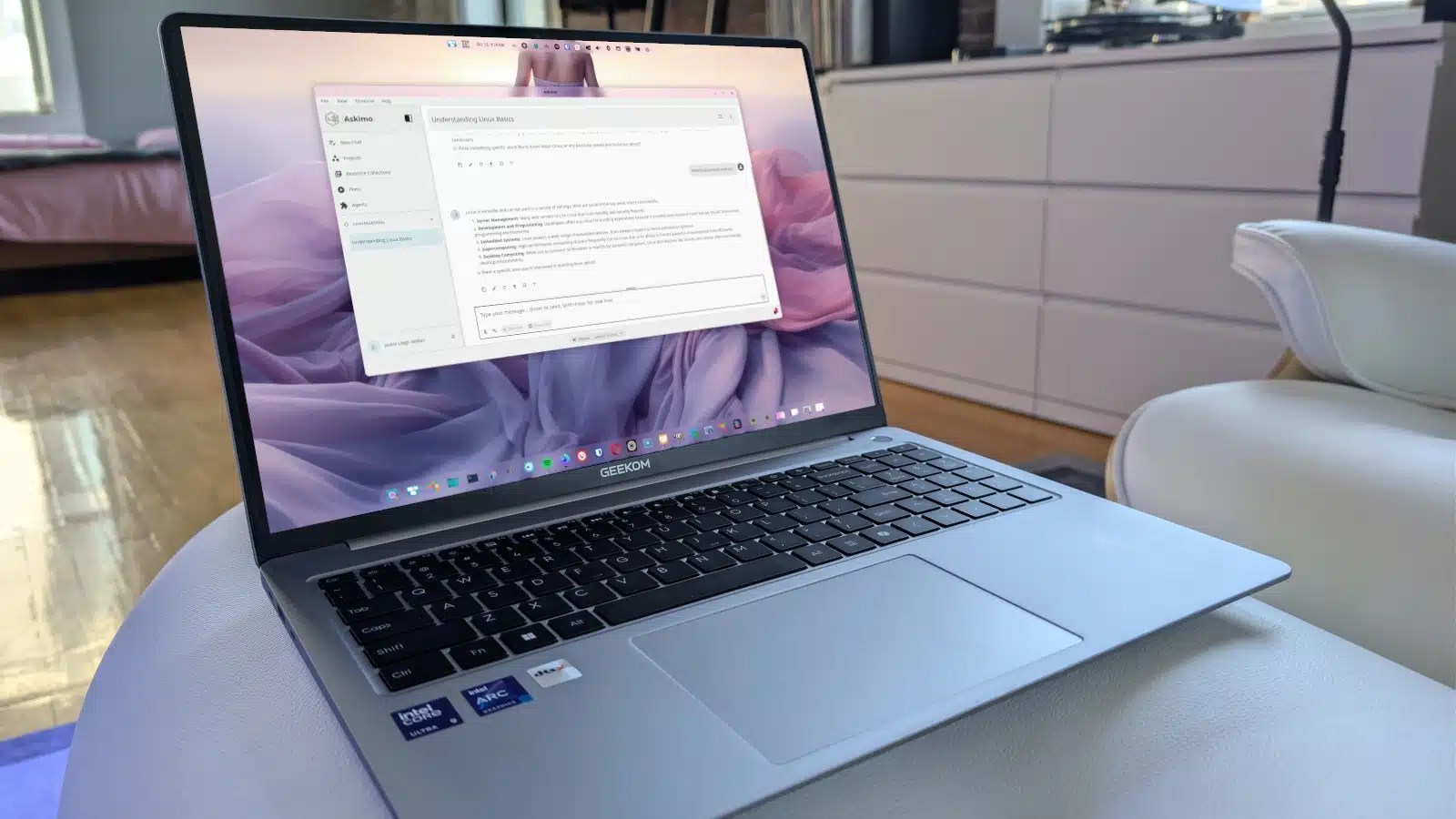
Running local AI can put heavy pressure on a Linux computer, sometimes slowing it down or making it unresponsive. A few choices around hardware, memory, models, and setup can help you keep working while AI runs.
An Nvidia GPU is often the simplest route to strong local AI performance. Its parallel-processing hardware and CUDA support can handle AI workloads more efficiently than a CPU. Install the appropriate drivers and check that your AI runtime, such as Ollama, can use the GPU.
AMD graphics cards can also work well. Installing AMD’s ROCm software stack can improve performance for supported workloads.
ZRAM uses compressed memory to make better use of physical RAM. It won’t give your computer enough memory to run a model that is far too large, but it can help prevent lockups when memory use spikes. It may be especially useful when running smaller or medium-sized models alongside other applications.
Unlike conventional disk-based swap, ZRAM operates in memory, which can help the system stay responsive. It is a Linux-specific option.
Bigger models generally demand more resources, so choose one that fits both the job and your computer. Small models are often labeled with parameter counts such as 1B, 2B, 7B, or 8B; larger models require more capable hardware. If a model’s size isn’t clear from its name, check its configuration file for details such as the number of layers and hidden size.
For local use, start with a smaller model and move up only when your hardware can handle it.
A separate machine on your local network can keep AI workloads from slowing down your main computer. Install the AI software on the server, allow connections from your LAN, and configure your desktop apps to use it. A server without a desktop environment may also have more resources available for AI processing.
This setup takes some initial configuration, but it can let you run AI tasks without interrupting work on your everyday machine.
ChicagoVPS is your gateway to unparalleled hosting solutions. Our state-of-the-art datacenters and powerful network ensures lightning-fast speeds and uninterrupted connectivity for your websites and applications. Whether you’re a startup looking for scalable resources or an enterprise in need of enterprise-grade hosting, our range of plans and customizable solutions guarantee a perfect fit. Trust in ChicagoVPS to deliver excellence, combining unmatched reliability and top-tier support.
For Inquiries or to receive a personalized quote, please reach out to us through our contact form here or email us at sales@chicagovps.net.


