
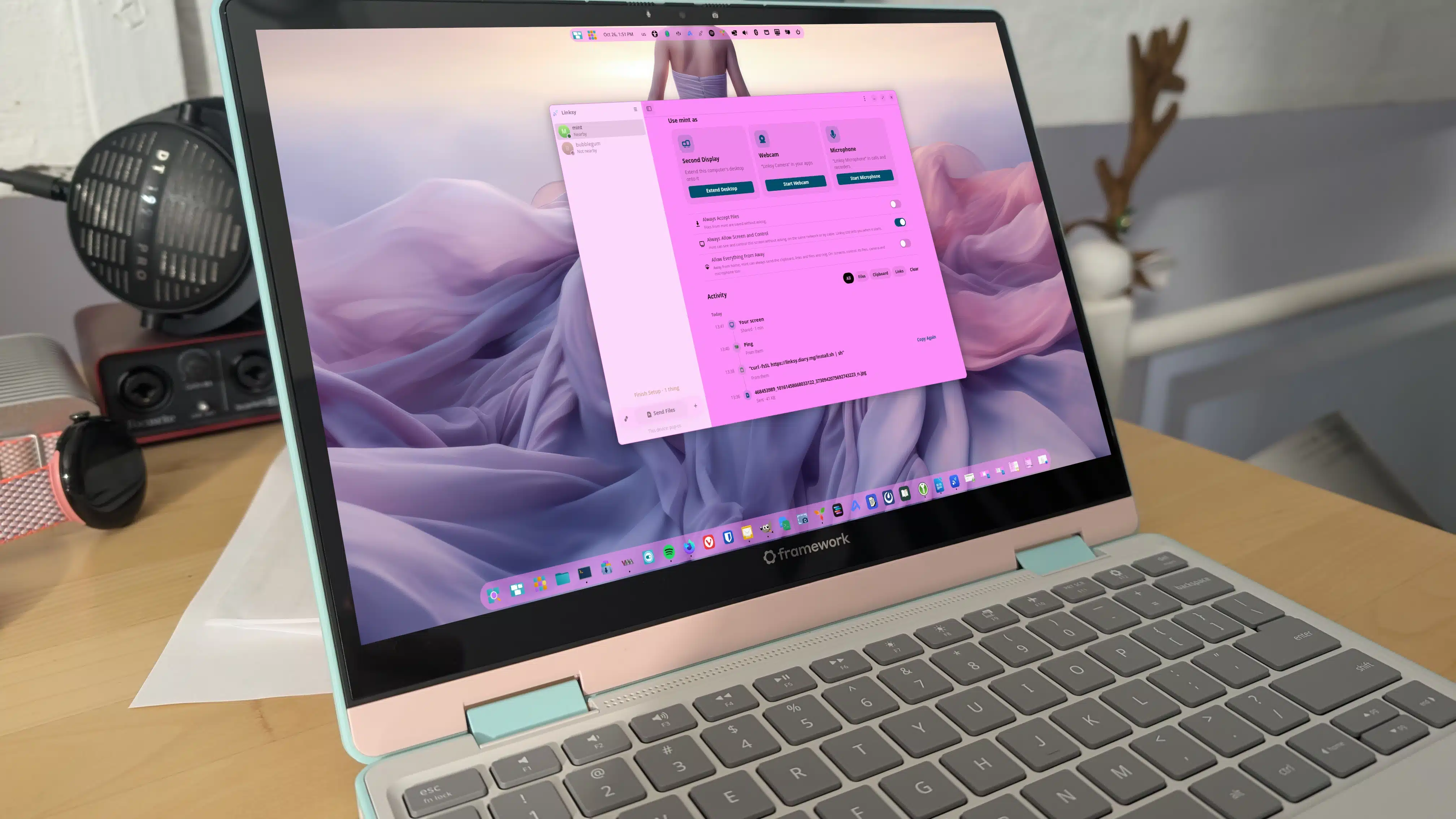
Linksy is a free, open-source Linux app for sharing files, clipboard contents, and screens between devices on the same network. It’s still in early development—version 0.9.11 at the time of testing—so some features may not work on every setup. Webcam sharing didn’t work, and desktop extension isn’t yet supported on COSMIC.
I installed Linksy on a desktop, laptop, and virtual machine. Its file and clipboard sharing were the most useful features: they made it easy to move information between machines without relying on an SMB share or copying text through an SSH session.
The recommended Linux installation method is to run this command in a terminal:
curl -fsSL https://linksy.diary.mg/install.sh | shInstall the app on each device you want to connect. Linksy also has an Android app that can be installed by sideloading its APK.
The project was developed with AI assistance. A code scan found a medium-severity issue related to the option to automatically accept incoming files, so use that setting only on a network where you trust the other devices.
Open Linksy on both machines and complete the initial setup by selecting Set Up Everyone. To pair the devices, find the IP address of one machine by running:
ip aOn the other machine, select Add Device, scroll down, and choose Pair by address. Enter the IP address, then check that the six-digit pairing codes shown on both devices match before selecting Pair.
To send a file, select the recipient device in Linksy’s sidebar and choose Send Files, or drag and drop the files into the app. The receiving device will prompt you to accept them. Accepted files are saved in ~/Downloads/Linksy.
You can also choose Always Accept to skip the approval prompt for future transfers. Enable this only if you trust the devices on your network.
Clipboard sharing is similarly simple: copy text on one device and select Clipboard. The app doesn’t display a confirmation, but the copied content will be available to paste on the receiving machine.
Linksy can also share a screen, letting you choose which display to send. Although not every feature worked in testing, its file and clipboard sharing make it a handy option for moving between Linux machines on a local network.
ChicagoVPS is your gateway to unparalleled hosting solutions. Our state-of-the-art datacenters and powerful network ensures lightning-fast speeds and uninterrupted connectivity for your websites and applications. Whether you’re a startup looking for scalable resources or an enterprise in need of enterprise-grade hosting, our range of plans and customizable solutions guarantee a perfect fit. Trust in ChicagoVPS to deliver excellence, combining unmatched reliability and top-tier support.
For Inquiries or to receive a personalized quote, please reach out to us through our contact form here or email us at sales@chicagovps.net.


