
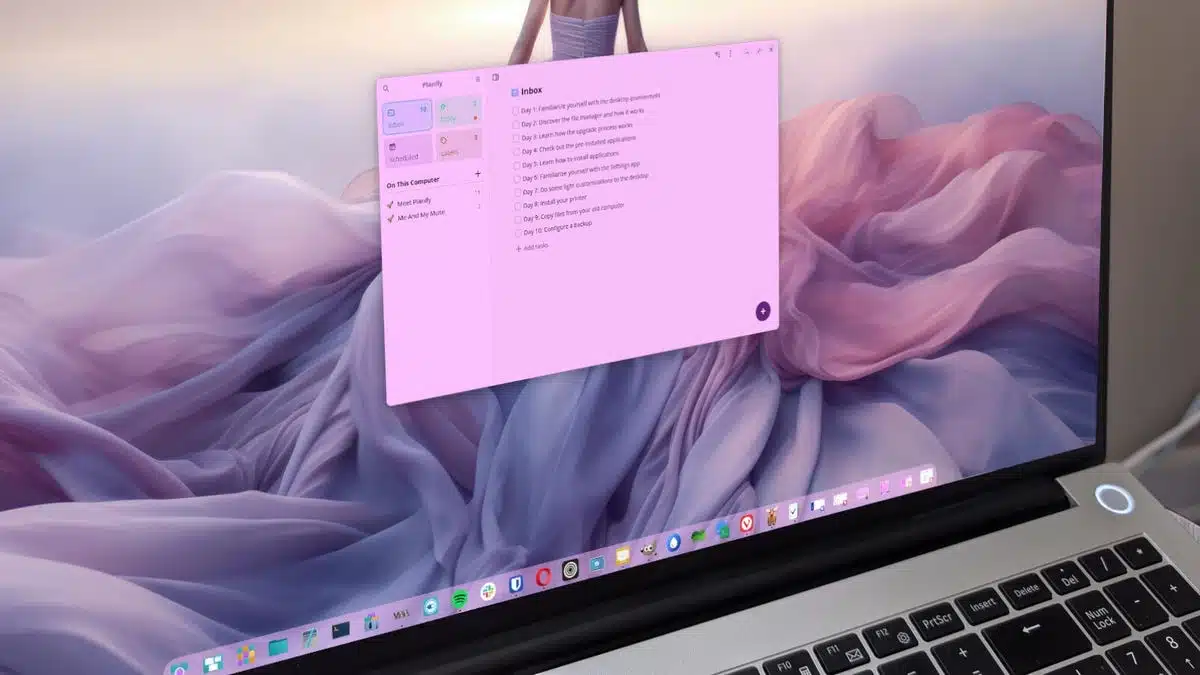
So you’ve made the decision to try Linux, and you might be feeling both excited and a bit overwhelmed, especially if you’ve only ever used MacOS or Windows. Transitioning from a familiar operating system to Linux can seem daunting, but it doesn’t have to be. To ease your journey, here’s a straightforward 10-day plan that will help you get comfortable with Linux step by step.
Start by familiarizing yourself with the new user interface. Depending on the distribution (distro) you chose, it may resemble what you’re used to, especially if it uses a familiar layout like KDE Plasma. Focus on learning how to navigate the desktop panel, access the menu, and manage app launchers. Don’t worry about customizing just yet; getting to know the basics is key.
Your file manager is essential for managing files and folders. Discover your home directory, which is similar to the C:Usersyourusername on Windows. Familiarize yourself with creating, moving, and deleting folders within it. Aim to understand how to access different directories without getting lost in the more complex file system.
Learn how to check for and manage upgrades, which is often prompted via notifications. If nothing appears by Day 3, navigate the desktop menu to find the upgrade application and run it. Upgrading Linux is generally straightforward and user-friendly.
Examine the applications that come with your distribution, including a web browser (likely Firefox or Chromium) and possibly an email client such as Thunderbird or an office suite like LibreOffice. Familiarize yourself with these tools as they will be crucial for your everyday tasks.
If you find you’re missing essential software, don’t fret. Most Linux distributions come with GUI app stores similar to app stores on other platforms. Use these to search for and install new applications easily, requiring only a password for confirmation.
Begin exploring the Settings app, where you can customize key system aspects such as display, network, and sound. This app is vital for personalizing your experience and troubleshooting basic issues.
Now that you’re somewhat established, spend today tweaking your desktop a bit. Change the wallpaper, adjust the layout, and play with minor settings to make the environment feel more personal. Be cautious not to overwhelm yourself with complex adjustments just yet.
Connect any printers to your computer. Many Linux distros detect printers automatically, streamlining setup without the need for driver installations. If you do need drivers, ensure you download the correct version for your specific distribution.
Now that you’re more confident with Linux, it’s time to copy necessary documents and files from your previous OS. Organize them into appropriate directories on your new system, such as Documents or Pictures.
Before you wrap up the first ten days, set up a backup solution. Whether it’s using a tool like Deja Dup or another application available through your app store, ensure your files are safeguarded, especially important documents in case of unexpected issues.
By the end of these 10 days, you should be comfortably acclimatizing to Linux. Just keep practicing, and you’ll discover the freedoms and powers of this versatile operating system. Happy exploring!
ChicagoVPS is your gateway to unparalleled hosting solutions. Our state-of-the-art datacenters and powerful network ensures lightning-fast speeds and uninterrupted connectivity for your websites and applications. Whether you’re a startup looking for scalable resources or an enterprise in need of enterprise-grade hosting, our range of plans and customizable solutions guarantee a perfect fit. Trust in ChicagoVPS to deliver excellence, combining unmatched reliability and top-tier support.
For Inquiries or to receive a personalized quote, please reach out to us through our contact form here or email us at sales@chicagovps.net.


